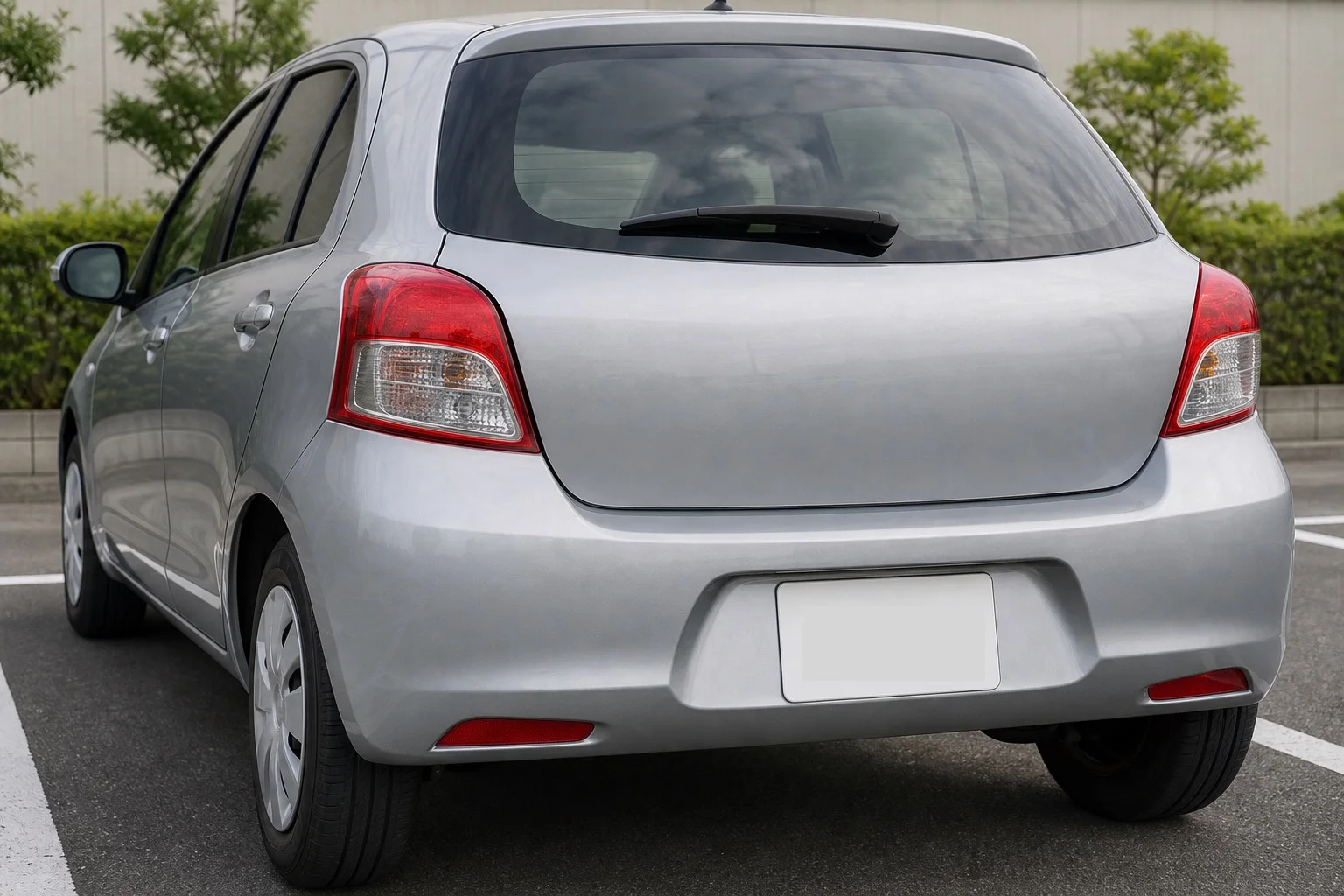
Zoom in and cover the complete plate with a strong blur or, more simply, a fully opaque mask. Then inspect every window, mirror, sticker, sign, and background object that could identify a person or regular location.
People hide license plates for different reasons: a public social post, a sales listing, a repair question, or a community group. The plate itself may not reveal the same information in every country, but masking it is a quick way to reduce unnecessary identifiers in a widely shared image.
Blur, pixelate, crop, or use a solid mask?
Crop when the plate is near an edge
If trimming the frame does not remove important parts of the vehicle, cropping is simple and leaves nothing to inspect in that area.
Use blur only when it is strong enough
A light blur can preserve the structure and spacing of characters. Review the exported image at full resolution, not only as a small social media preview.
Use an opaque cover for a clear result
A solid mask is straightforward to verify. Choose black for an obvious redaction, or sample a nearby bumper or plate color when you want the result to attract less attention.
What else can identify the car or location?
Parking permits and registration stickers
Small windshield or bumper stickers may include a residence, campus, employer, lot, membership, or expiration detail. Zoom in on both front and rear views.
Home, school, and workplace clues
House numbers, street names, business signs, uniforms, and repeated parking spots can reveal where the vehicle is usually kept. A distinctive gate or building can be enough for someone familiar with the area.
Reflections and interior screens
Windows, mirrors, glossy paint, navigation displays, and instrument panels can show faces, addresses, map destinations, contacts, or a phone screen. Check reflections after you finish looking at the obvious text.
People and neighboring vehicles
A bystander's face or another vehicle's plate may not be part of your story. Crop or cover them before publishing a high-resolution image.
Buyers may need to see condition, features, and legitimate vehicle information. Keep what supports the sale, and hide only details that are not required for the public listing.
How to cover a plate on iPhone
- Open the car photo in 2Step Mask.
- Pinch to enlarge the plate and switch to Move when repositioning the image.
- Choose Area Mask and drag around the full plate, including its borders.
- Use Marker for reflections, permits, or irregular background details.
- Undo and adjust any mask that reaches into the vehicle.
- Save a copy and inspect the full frame.
The control panel stays at the top right, where it remains visible while your hand works over the image. This makes it easier to confirm whether Move or Area Mask is active before dragging.
Car photo privacy checklist
- The entire plate, including small regional text, is covered
- Parking permits, decals, VIN displays, and registration stickers are reviewed
- House numbers, street signs, and routine parking clues are checked
- Faces, neighboring plates, windows, mirrors, and glossy reflections are inspected
- Navigation and dashboard screens do not show private destinations or contacts
- The exported copy is checked at full size
Frequently asked questions
Is a black rectangle over the plate enough?
It is enough for the plate when the rectangle is opaque, covers the complete plate, and is flattened into the saved image. Continue checking the rest of the frame.
Can the mask be removed later?
Not as a separate layer from a flattened saved copy. The original photo still exists separately, so make sure you upload the edited version.
Cover the plate, then check the full frame
Zoom, move, mask, undo, and save a flattened copy without sending the photo to an external AI service.
View on the App Store