Open a photo
Choose a screenshot or photo from your iPhone library.
Redact on iPhone
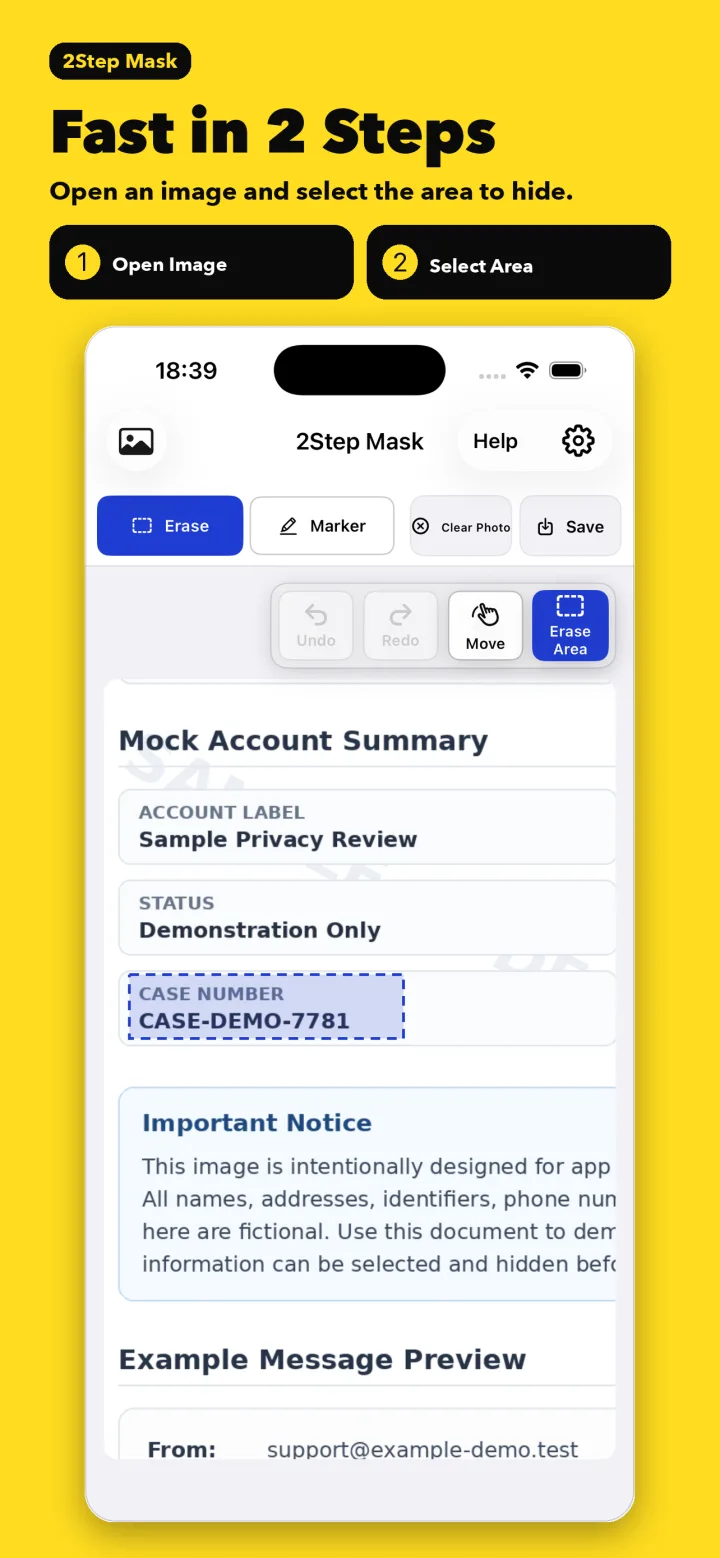
Open a screenshot or photo, then drag over private text. Mask names, addresses, order numbers, and IDs with an opaque color that matches the background.
Save one image per day on the free plan. No ads. Pro offers unlimited saves.
Fast in 2 steps
Area Mask is ready as soon as your photo opens. Switch to Move or Marker only when you need them.
Choose a screenshot or photo from your iPhone library.
2Step Mask samples colors inside the selected edge and fills the area with a nearby background color.
Your original stays untouched. The redacted result is saved as a new, flattened image.
Why it feels faster
General photo editors make you move between colors, tools, opacity, zoom, and canvas controls. 2Step Mask is designed around the redaction task itself.
You may have to configure four things before covering a single name.
→ Area Mask is ready when the photo opensA drag meant to reposition the image can leave an unwanted line.
→ Move is a clear, separate modeA highlighter may look dark while the original text still shows through.
→ Opaque marks made for redactionPure white stands out, while a thin pen takes several passes.
→ Background sampling, eyedropper, and a wide markerText redaction is precise work. It should be easy to undo, check, and redo.
→ Undo and Redo stay in the control panelControls near your drawing hand disappear behind your finger and palm, hiding the current mode.
→ The panel stays at the top right, in viewMade for redaction
Move quickly from a screenshot to a clean, shareable copy without hunting through a general-purpose editor.
Drag a rectangle over text. The app uses a nearby background color to make the result blend in.
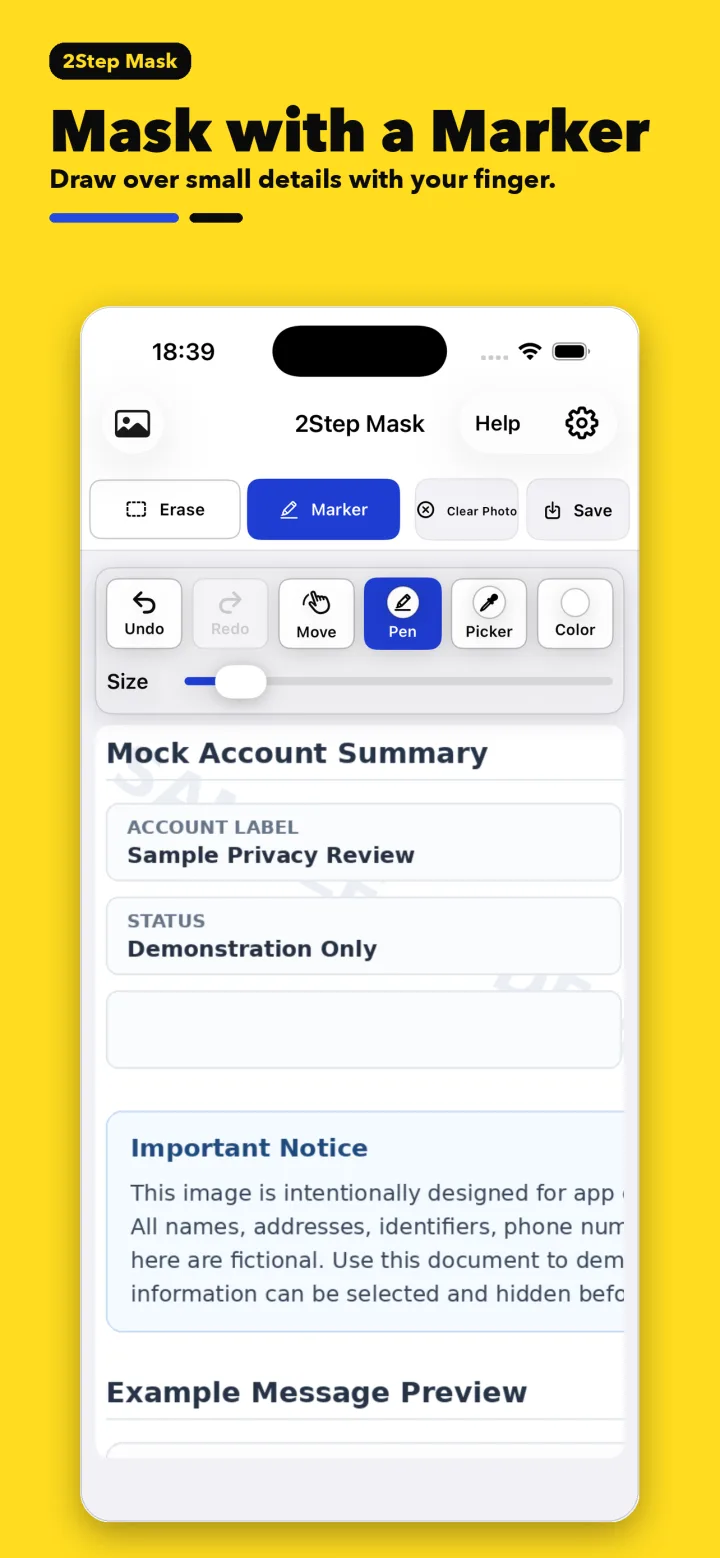
Use the eyedropper, color history, favorites, palette, and adjustable width for horizontal or vertical text.
Pinch to zoom. Switch to Move and drag freely around an enlarged image before masking the next area.
On-device privacy
Photos used to hide personal information should not create a new privacy concern. 2Step Mask processes images on-device and does not send them to an external AI or image-processing server.
Privacy guides
Practical checks for screenshots, shipping labels, children's artwork, license plates, receipts, and more.
Check names, addresses, notifications, usernames, and IDs.
Read guide →Understand the difference between translucent ink and a flattened mask.
Read guide →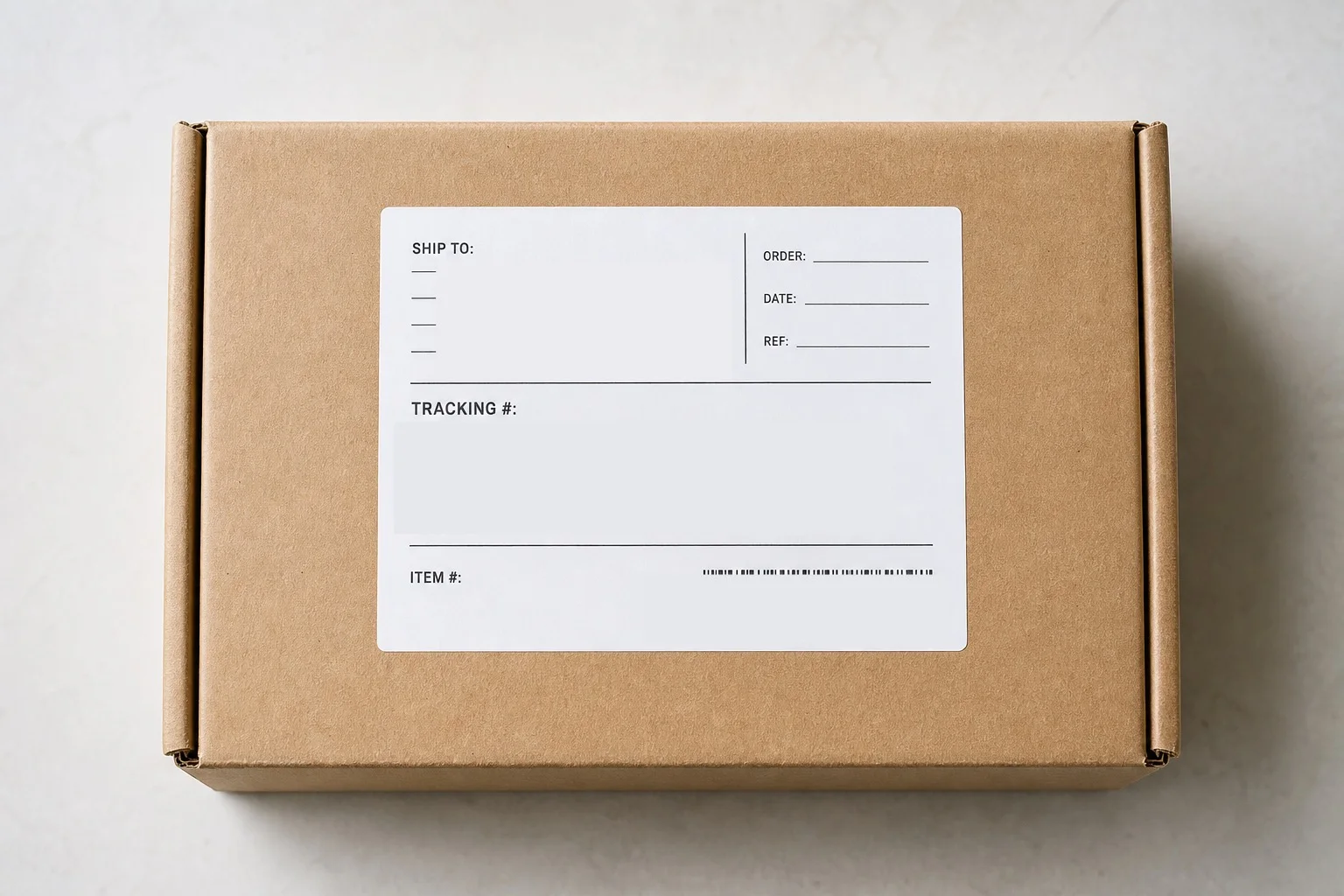
Cover addresses, phone numbers, tracking numbers, and barcodes.
Read guide →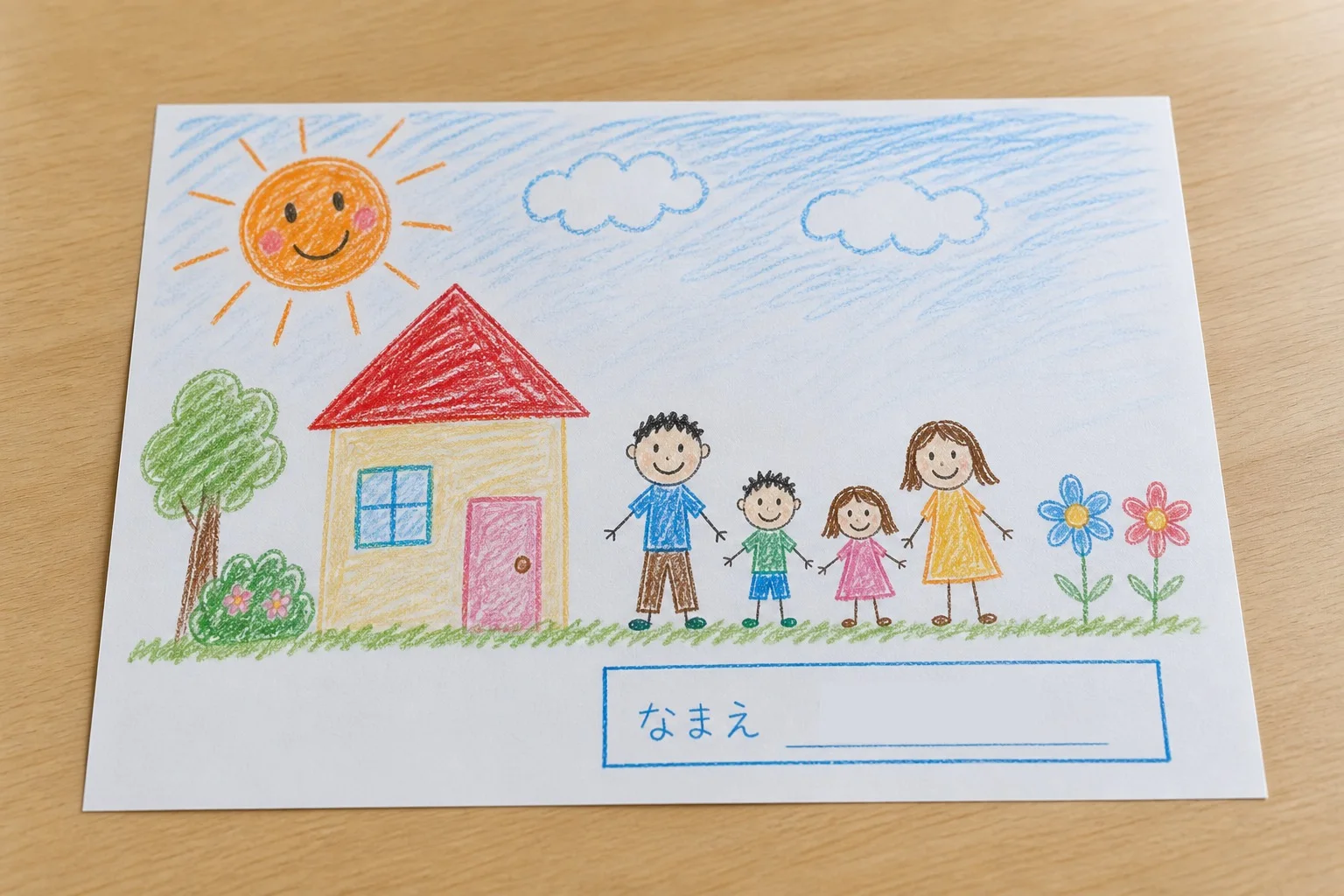
Keep the artwork visible while masking school and identity clues.
Read guide →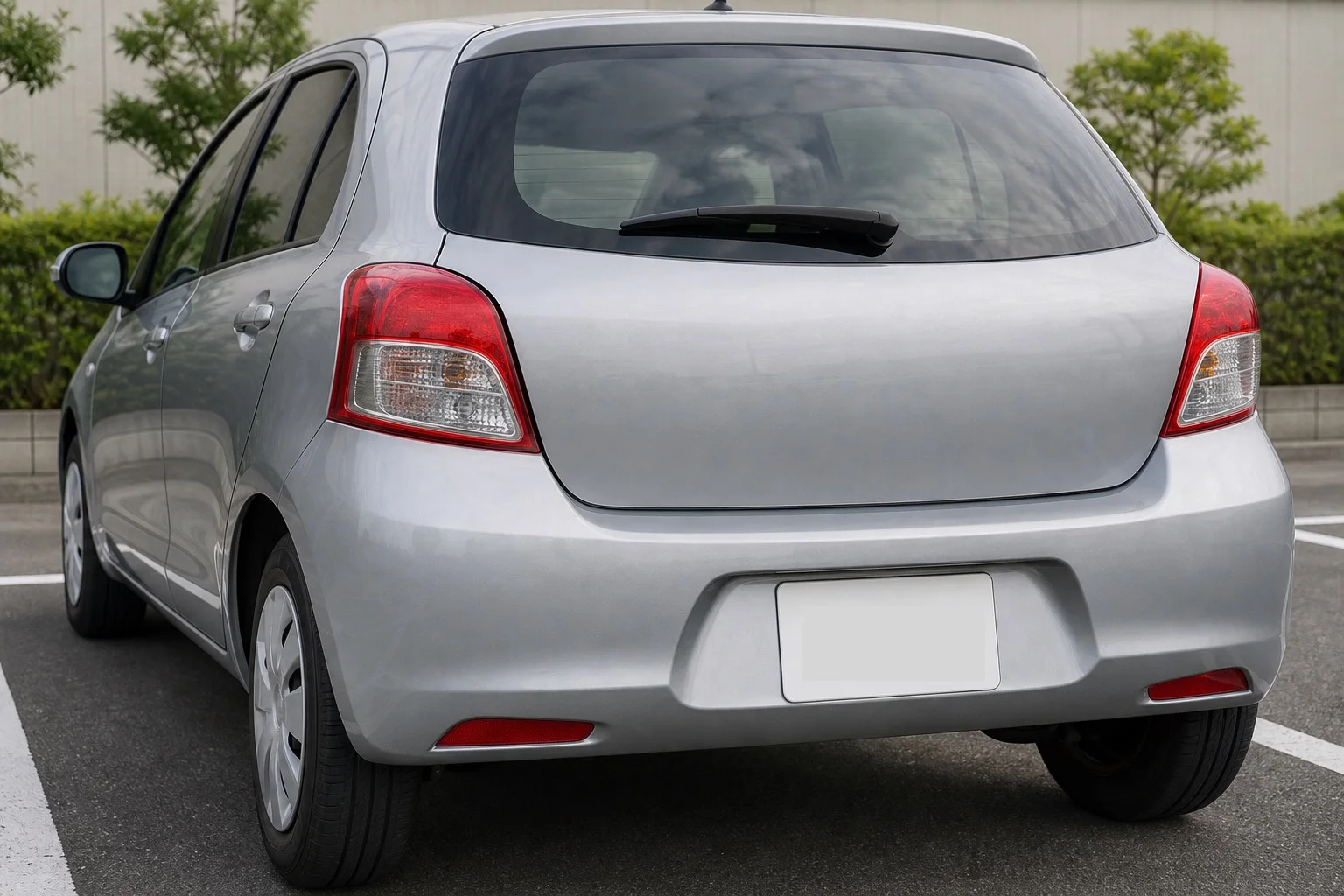
Look for location clues, reflections, decals, and signs too.
Read guide →Hide lookup details while keeping the information someone needs.
Read guide →2Step Mask / 2ステップイレイザー