Crop the complete label out when possible. If the label must stay in the photo, cover the recipient and sender details, tracking references, barcodes, QR codes, and local routing marks with opaque masks.
Delivery photos, resale listings, and unboxing posts often include the box as part of the story. A label in the background may look too small to read on your screen, but viewers can download or enlarge the original image.
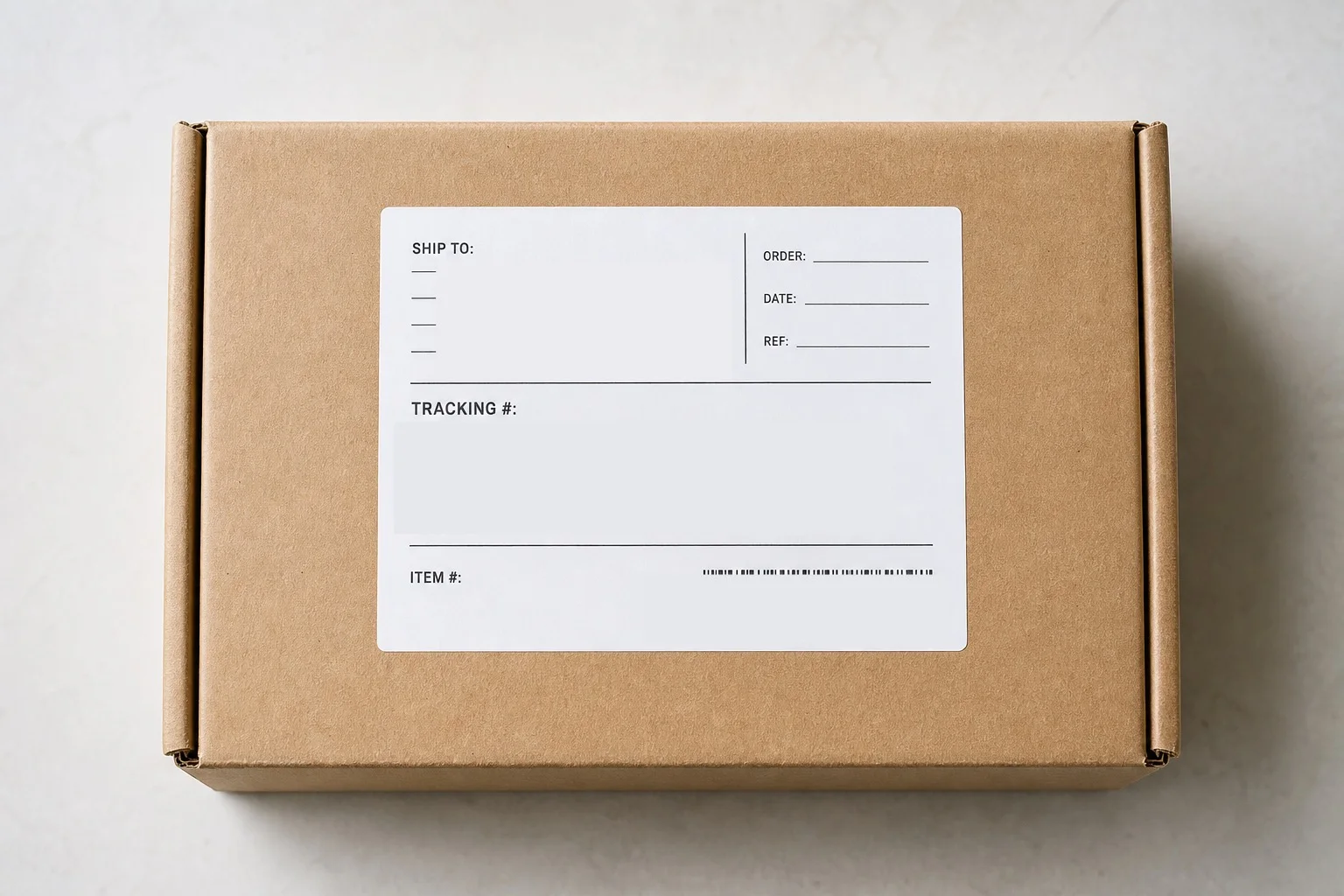
Seven details to hide on a shipping label
1. Recipient name
A full name combined with a parcel photo can connect an account, purchase, or home address to a specific person. Cover business and department names when they identify a workplace.
2. Delivery address
Mask the complete address, including apartment or unit numbers, postal codes, and building names. Do not leave the final line visible because the rest looks covered.
3. Phone number and email address
Contact details may appear in small type near the address or service instructions. Zoom in before deciding the label is clean.
4. Sender and return address
The sender may be a person, a small business, a family member, or a private marketplace seller. Protect their information as carefully as the recipient's.
5. Tracking and reference numbers
A tracking number can reveal delivery status and route information. Order, account, shipment, and return authorization numbers may also be used in support or lookup workflows.
6. Barcodes and QR codes
Machine-readable codes can encode the same numbers you just covered in text. Mask the full symbol and its surrounding blank margin.
7. Routing and facility codes
Large route letters, local depot codes, and service labels can narrow down the delivery area even when the exact address is hidden. If the code is not part of your post, cover it.
Crop, blur, or cover?
Crop first when the label is not important to the image. Removing the whole area is the simplest result to inspect. If the parcel and label composition matters, an opaque cover is easier to verify than a weak blur. Small text may remain recognizable through light pixelation.
A background-matched mask can keep the box looking natural, while black makes the redaction obvious. The safe choice is the one that is fully opaque, extends beyond the information, and remains unreadable in the exported file.
Some parcels carry duplicate labels on another side, handwritten delivery notes, or a smaller reference sticker. Inspect the full frame rather than masking only the largest label.
A two-step masking workflow
- Open the parcel photo in 2Step Mask.
- Drag over the address and each remaining reference field with Area Mask.
- Pinch to enlarge small codes, then choose Move before repositioning the photo.
- Use Marker and the eyedropper when you want a specific cardboard or label color.
- Save a new copy and zoom in on the result.
Undo and Redo stay available if a mask reaches into a product logo or misses the edge of a barcode. The controls remain at the top right, where your drawing hand is less likely to cover the selected mode.
Parcel photo checklist
- The full recipient and return addresses are hidden
- Phone and email fields have been checked at high zoom
- Tracking, order, return, and account references are covered
- All barcodes and QR codes are masked with their margins
- Small routing stickers and handwritten notes are reviewed
- The shared attachment is the redacted copy
Frequently asked questions
Can someone read a label that looks tiny in my post?
Social platforms may preserve a larger source image than the preview you see. Treat visible label text as readable and redact it before upload.
Should I cover the store or carrier name?
That depends on what the post is meant to show. A general carrier logo is usually not personal information, but a small seller, clinic, employer, or specialty store may reveal something private.
Hide every label field without repainting the whole box
Open the photo, drag over each private area, and save a flattened copy on your iPhone.
View on the App Store