Decide exactly what the recipient needs, crop unrelated parts of the screen, and cover every personal or lookup field with an opaque mask. Save a flattened copy and inspect it before attaching it.
An order confirmation can be shared for many reasons: asking a friend what they think, reporting a delivery problem, showing an expense, or contacting support. The safest edit depends on that purpose. A support agent may need an order number that a public social post does not.
Fields that often need redaction
Customer and delivery information
Review full names, billing and shipping addresses, phone numbers, email addresses, pickup locations, and recipient notes. The same address may appear in both a summary and an expanded section.
Order, booking, ticket, and case numbers
Reference numbers can be useful for customer service, but unnecessary in a public post. Ticket and booking codes may be especially sensitive when they support entry, check-in, cancellation, or account lookup.
Payment and account clues
Check card brand and last digits, payment account names, gift card balances, loyalty numbers, subscription IDs, invoice numbers, and account usernames. A partial detail can become more identifying when combined with other information.
QR codes, barcodes, and links
A ticket or return code may be usable even when the printed number is hidden. Cover the full code and surrounding border. Check buttons and links that contain visible tokens or invitation codes.
Support messages and notifications
Chat transcripts can include employee names, email signatures, case numbers, or a different private topic above the section you meant to share. Notifications at the top of the screen deserve a separate pass.
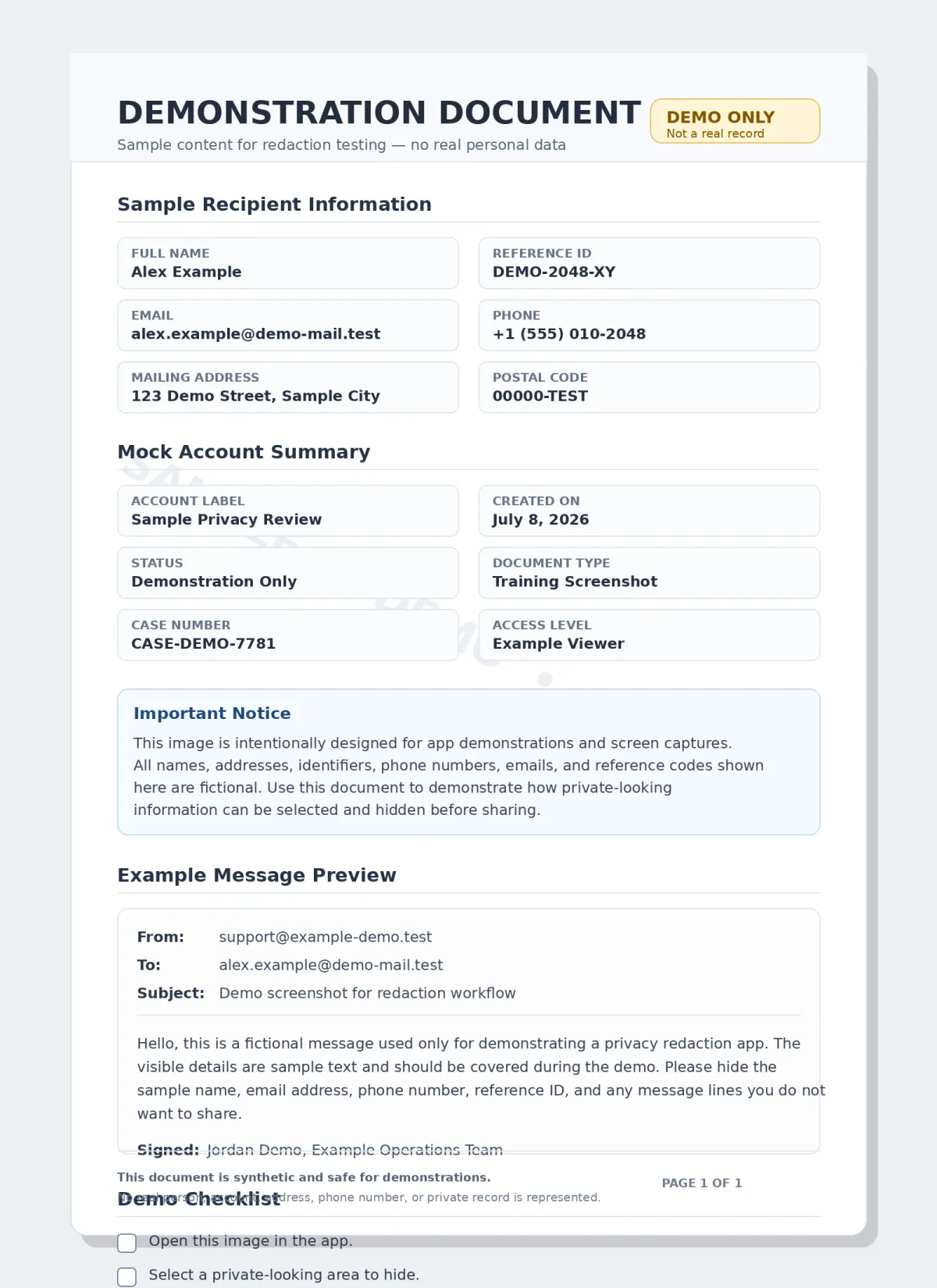
Redact for the purpose of sharing
For public posts: keep the product, price, or message you are discussing and remove customer, account, order, delivery, and payment details.
For support: keep the reference the official support channel asked for, but remove unrelated account details and other people's messages. Avoid posting a support screenshot publicly when a private channel is available.
For expenses: the reviewer may need the merchant, date, amount, tax, and category. They may not need a home address, loyalty number, full account identifier, or private item description.
A translucent highlighter may be useful for pointing to a price, but it does not safely hide text. Use an opaque mask for the information that must not be read.
A fast workflow for long screens
- Open the screenshot in 2Step Mask.
- Use Area Mask on each rectangular text field.
- Pinch to enlarge small reference numbers, then switch to Move before dragging the image.
- Use Marker for narrow lines, irregular notes, or a color sampled from the interface.
- Use Undo and Redo to correct a mask without starting over.
- Save a copy and review the image from top to bottom.
The top-right control panel remains visible while your hand works over the screenshot. You can confirm the active mode without lifting your hand away from the area you are editing.
Order and receipt checklist
- Names, contact details, billing addresses, and shipping addresses are checked
- Order, booking, ticket, return, invoice, and support references are reviewed
- Payment and loyalty account clues are hidden when unnecessary
- QR codes, barcodes, and visible access links are fully covered
- Notifications, chat history, and screen edges are checked
- The final attachment is the redacted, flattened copy
Frequently asked questions
Can I send the unedited screenshot directly to official support?
Use the support provider's official channel and send only what they request. Even then, review unrelated notifications and private information from other accounts or people.
Can someone remove a mask from the saved receipt?
Not when the mask is opaque and flattened into the saved image. The original remains separately in your library, so choose the edited copy when attaching.
Keep the useful details. Hide the rest.
Redact long screenshots with Area Mask, Move, Marker, Undo, and Redo, all processed on your iPhone.
View on the App Store